You have full control over which invoices and credit memos are automatically sent from Wholesail. You can view and manage your invoice and credit memo queue using the Invoices tab in Wholesail. To learn more about what this feature is all about, click here. To learn how to turn this feature on for your customers, click here.
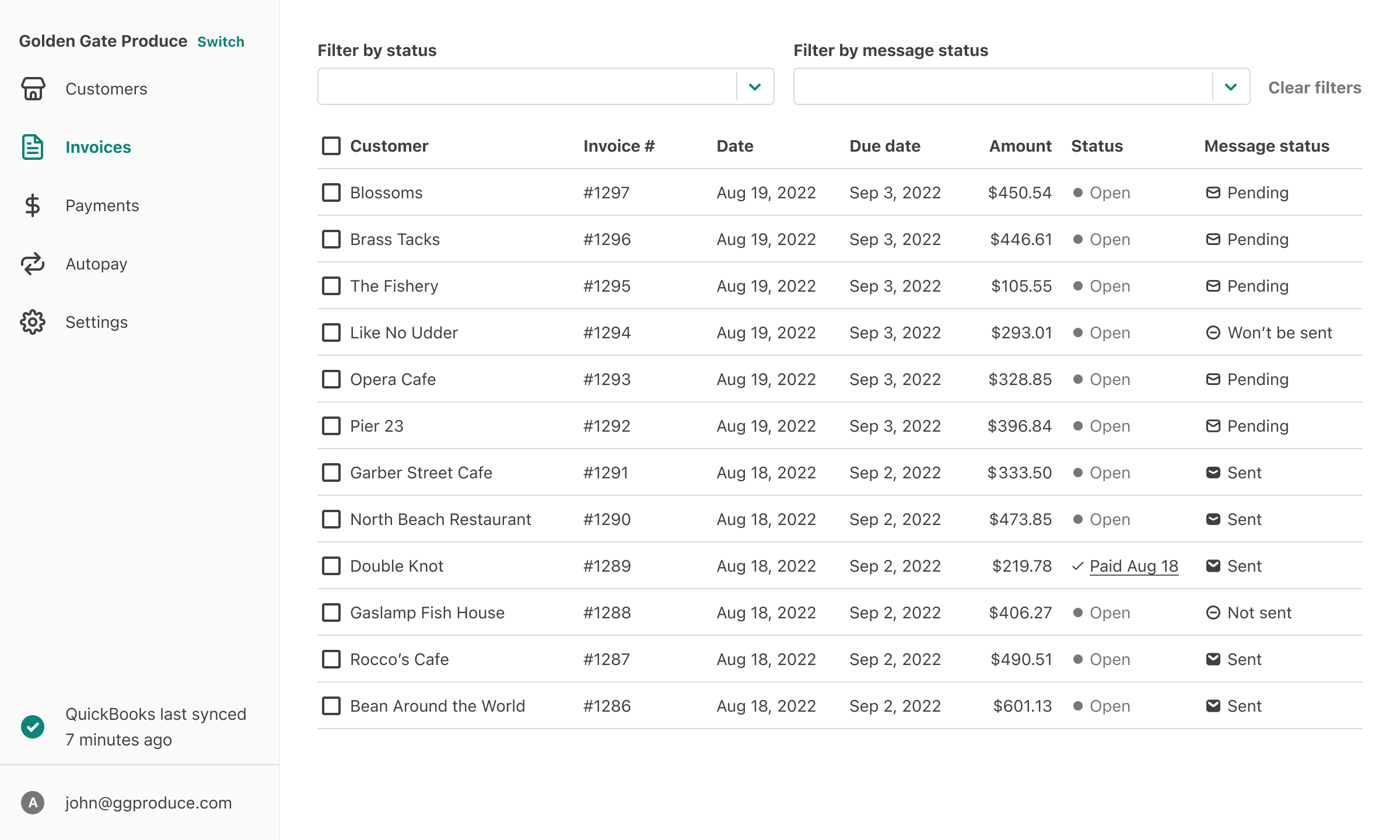
Invoice Message and Send Statuses
After turning on this feature, you will see a new column within the Invoices Tab labeled Send status. Invoices in Wholesail will be assigned 1 of 4 send statuses depending on if the invoice was sent or was not sent from Wholesail.
| Send Status | What does it mean? |
| Pending | The invoice will be emailed at the next scheduled send time. You can customize send times by navigating to Settings >> Global Settings. |
| Won't be Sent | The invoice will not be emailed until you take a manual action. When you choose to not automatically send a “Pending” invoice, its status will change to “Won’t be sent”. |
| Sent | The invoice has already been emailed from Wholesail. |
| Not Sent | The invoice email was not sent from Wholesail. |
Stop Invoices from Sending Automatically
You can stop a Pending invoice or credit memo email from automatically going out using the Invoice list. Note - after you do this, the status of the send status will change to Won't be sent.

- Login to your Wholesail account by clicking here and navigate to your Wholesail Vendor profile.
- Select Invoices from the left hand side menu.
- Use the checkbox next to each Pending invoice to select the invoices you would not like to send out automatically from Wholesail.
- Select the Don't automatically send button from the bottom of the page to stop a Pending invoice or credit memo from automatically going out.
Send Specific Automatic Email Invoices
You can send a Won't be sent invoice or credit memo email automatically at the next scheduled send time using the Invoice list.

- Login to your Wholesail account by clicking here and navigate to your Wholesail Vendor profile.
- Select Invoices from the left hand side.
- Use the checkbox next to each Won't be sent invoice to select the invoices you would like to send out automatically from Wholesail.
- Select the Automatically send button from the bottom of the page to send the invoices automatically at the next scheduled send time.
Manually Email Invoices in Bulk
You can bulk select invoices you'd like to manually send from Wholesail regardless of the invoice and credit memo send statuses.
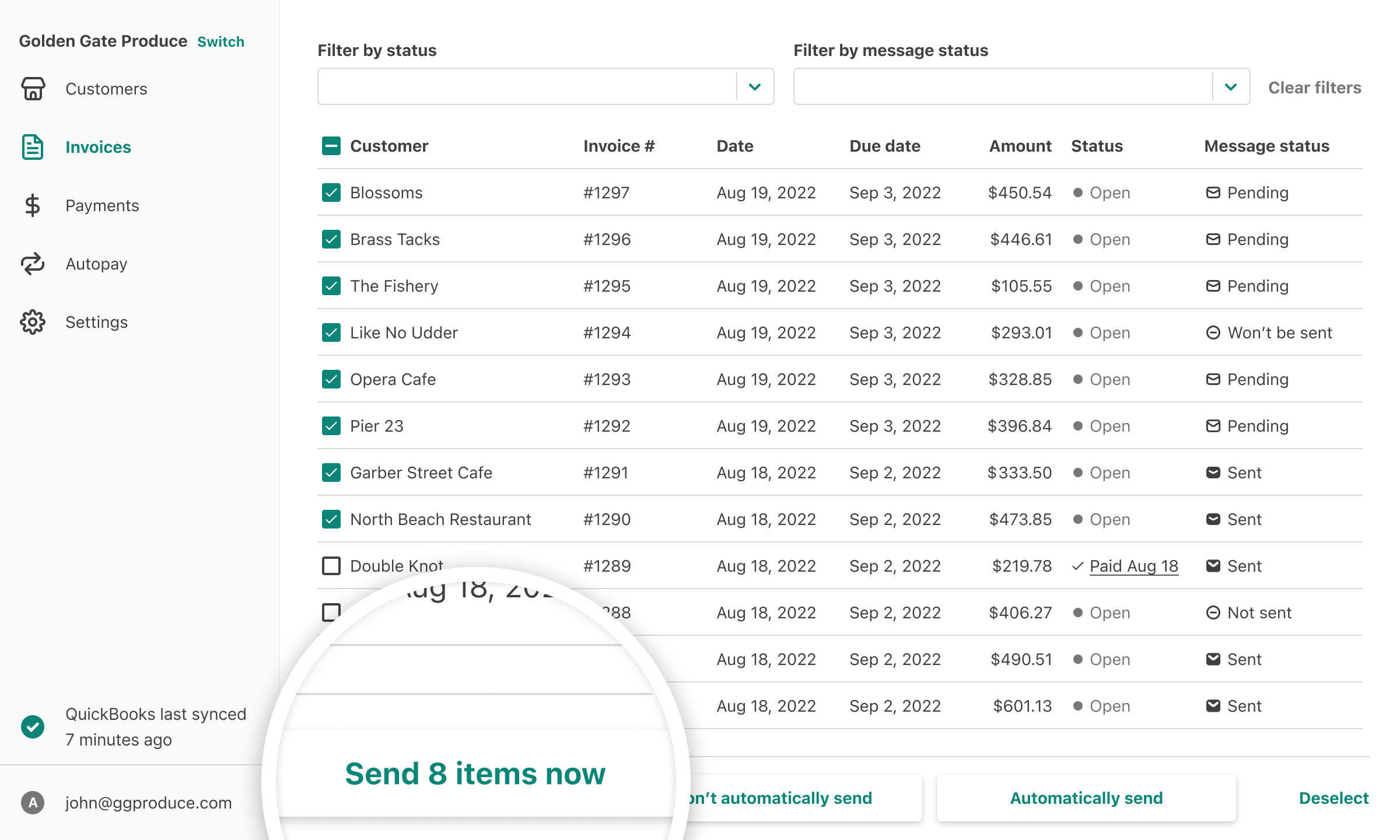
- Login to your Wholesail account by clicking here and navigate to your Wholesail Vendor profile.
- Select Invoices from the left hand side.
- Use the checkbox next to each invoice to select the invoices to manually send from Wholesail.
- Select the Send X Items Now button from the bottom of the page where X is the number of invoices you've selected.
What Invoices are Not Sent Automatically?
There are a few reasons why an invoice will not be sent automatically from Wholesail.
- Your customer has no contacts in Wholesail.
- Your customer is on your blocklist.
- All customer contacts have opted out of receiving automatic invoice and statements notifications.
- The invoice was pre-dated more than 7 days prior to the current date. This rule is customizable - please reach out to support if you want to edit this setting.
- The customer has the Accounting Issue tag.
- Your accounting system is out of sync with Wholesail.
- The invoice was added to Wholesail before the feature was enabled.
- You or a team member manually stopped a Pending invoice from being automatically emailed and the next invoice send time has occurred.
Frequently Asked Questions
What if I make changes to an invoice that has already been sent? Will it send again through Wholesail automatically?
No - if you make changes, the invoice will not be sent automatically. You can still find the invoice in Wholesail and send it manually.
Where can I see which invoice emails were delivered / opened by my customers?
Unfortunately, this feature is not available in the Wholesail application today. If you need a report to understand which invoice emails were delivered and / or opened, please reach out to your dedicated Customer Success Manager and we can provide a report for you upon request.
Other Related Support Articles on this topic:
- Introduction to Automatic Invoice Emails from Wholesail
- Setting up Automatic Invoice Emails for your Customers