This guide provides steps to enable and configure automatic new invoice and new credit memo emails in Wholesail to best fit your business needs. Wholesail will only send invoices and credit memos added to Wholesail from your accounting system after this feature is turned on. To learn more about what this feature is all about, click here. To learn how to manage which individual invoices and credit memos are sent from Wholesail, click here.
Automatic Invoice Emails for All Customers
You can turn on or off this feature for all customers in Wholesail under your Vendor profile's Global Customer Settings. After you enable this feature, we strongly recommend you stop all invoice and credit memo emails outside of Wholesail to prevent duplicate notifications to your customers.

- Login to your Wholesail account by clicking here and navigate to your Wholesail Vendor profile.
- Select Settings from the left hand side.
- Click Global Customer Settings from the top right corner of the page.
- Under Send invoices and credit memos, click the toggles to automatically send new invoices and credit memos from Wholesail.
- Send new invoices automatically: toggle this on to automatically send invoices from Wholesail.
- Send new credit memos automatically: toggle this on to automatically send credit memos from Wholesail.
- Under If turned on, invoices and credit memos will be sent, select the frequency to email new invoices and credit memos from Wholesail.
- As soon as possible: Send invoices and credit memos once an hour at the start of the hour.
- Once a day: Send invoices and credit memos once a day at the start of the hour.
- Twice a day: Send invoices and credit memos twice a day at the start of the hour.
- More than twice a day: Send invoices and credit memos more than twice a day at the start of the hour.
Did you know? If you do not see the option to enable Send invoices and credit memos in Wholesail or would like to learn more about this feature, reach out to your dedicated Customer Success Manager for assistance.
Automatic Invoice Emails for a Single Customer
If you have turned this feature on for all customers (see above section), you can choose to opt out certain customers. If you haven't turned this feature on for all customers, you can choose to only opt in a few select customers.
You have flexibility to customize which buyers will and will not receive automatic invoice email sends from Wholesail under each customer's Customer Settings page. After you enable this feature, we strongly recommend you stop all invoice and credit memo emails outside of Wholesail to select customers to prevent duplicate notifications.
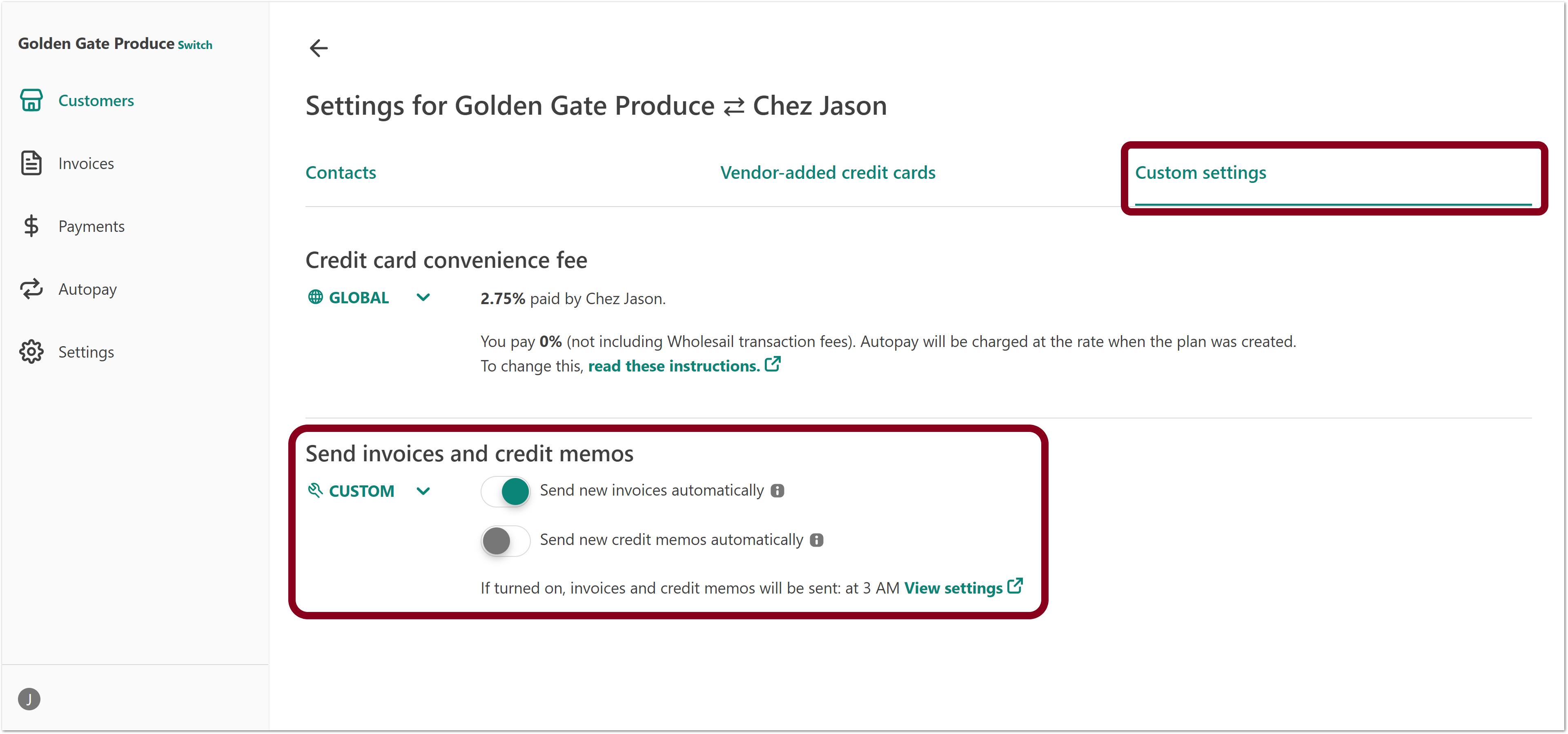
- Login to your Wholesail account by clicking here and navigate to your Wholesail Vendor profile.
- From your Customer List, open the customer you'd like to enable this feature for.
- Select Customer settings from the top right corner of the page.
- Select Custom settings from the available tabs.
- Under Send invoices and credit memos, click on the Global button and select Custom.
- Click the toggles to automatically send new invoices and credit memos from Wholesail.
- Send new invoices automatically: toggle this on to automatically send invoices from Wholesail.
- Send new credit memos automatically: toggle this on to automatically send credit memos from Wholesail.
What Invoices are Not Sent Automatically?
There are a few reasons why an invoice will not be sent automatically from Wholesail.
- Your customer has no contacts in Wholesail.
- Your customer is on your blocklist.
- All customer contacts have opted out of receiving automatic invoice and statements notifications.
- The invoice was pre-dated more than 7 days prior to the current date. This setting is customizable. Please reach out to support for assistance.
- The customer has the Accounting Issue tag.
- Your accounting system is out of sync with Wholesail.
- The invoice was added to Wholesail before the feature was enabled.
- You or a team member manually stopped a Pending invoice from being automatically emailed and the next invoice send time has occurred.
Frequently Asked Questions
If I email an invoice from my accounting or invoicing system, will it also automatically get emailed from Wholesail?
Yes - it will be emailed again from Wholesail. If you are using this Wholesail feature, we recommend not emailing new invoices from your ERP, accounting, or other invoice software solution so you don’t email the same invoice to your buyer twice.
If a buyer is on my Wholesail blocklist, will they receive automatic invoice emails if I enable this feature?
No - buyers on the blocklist will not receive automatic invoice emails or automatic weekly statements. You can still choose to manually send a one-off invoice email to them from Wholesail. To learn more about the blocklist, click here.
Can I customize send times for specific buyers?
No - send times are a global setting available under Settings >> Global Customer Settings that can’t be customized at the customer level at this time.
Will every contact for my customer receive automatic invoices?
No - specific customer contacts can opt out of receiving these notifications. To learn how your customers can disable these notifications, click here.
What if a customer contact wants to opt out of receiving automated invoices, but wants automated statements?
Unfortunately at this time, if a customer contact wants to opt out of receiving automated invoices, they will also have to opt out of receiving automated statements.
How do I add attachments to my invoices that are sent to customers?
If you would like to attach PDFs of invoices to your invoice emails, please contact your dedicated Customer Success Manager. It is not possible to attach any other documents to the Wholesail invoice emails at this time.