The Blocklist is an easy way to turn off statements for all contacts at a Buyer location in Wholesail. Buyers with the Blocklist tag will not receive statements from Wholesail regardless a contact's email preference on the Customer Settings page. To learn how to disable statements for a single Buyer contact, click here.
You can add or remove a customer from the Blocklist using Customer Tags. To learn more about using Customer Tags, click here.
Viewing the Blocklist
It's useful to be able to view all of the customers that are not receiving statements because they are on the Blocklist.
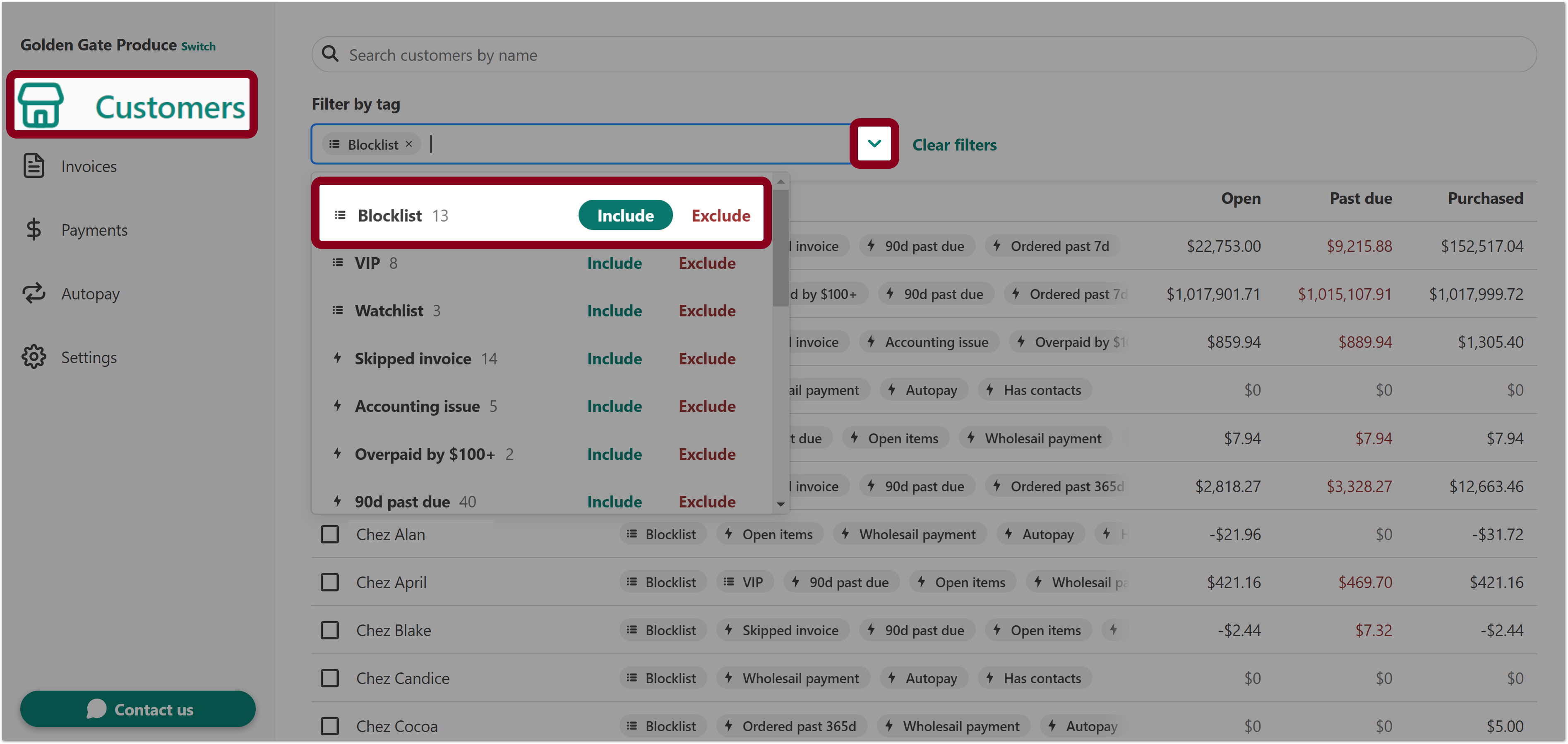
- Log in to Wholesail and select Customers from the left-hand side of the page to open the Customer List.
- Select the Filter by tag dropdown to open a list of available Customer Tags.
- Locate the Blocklist tag and click Include.
Adding or Removing Customers from the Blocklist
You can add and remove a customer from the Blocklist using manual Customer Tags.
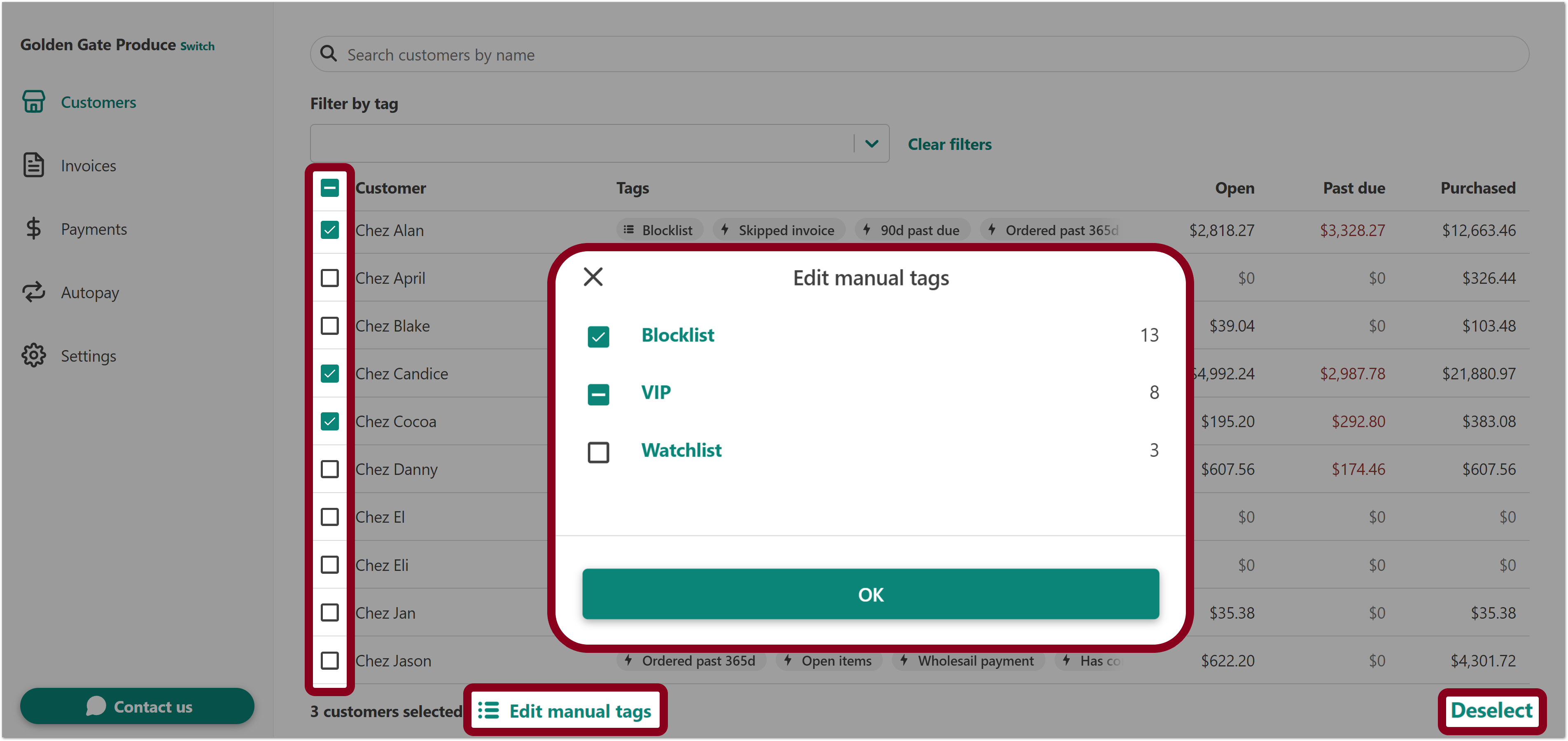
- Navigate to the Customer List to view the Customer Tags of all your customers.
- Select the customers which you want to add or remove from the Blocklist by checking the checkbox next to the customer name. You can deselect all customers by clicking Deselect from the bottom right corner of the page.
- Click Edit manual tags from the bottom of the page.
- Click the checkbox box next to the Blocklist tag to add or remove the selected customers from the Blocklist.
Button What it means What happens when clicked 
Checked. All of the selected customers have the tag.
Clicking this will uncheck the box.

Indeterminate. Some of the selected customers have the tag, and some selected customers do not have the tag.
Clicking a checkbox with a dash ("–") will uncheck the box. 
Unchecked. None of the selected customers have the tag. Clicking this will check the box. - Select OK to confirm your changes.