We know that each of your customers are different and you may want to track specific information about them. Customer Tags help you do that by adding quick tags to the customer list so you can view this information at-a-glance.
Customer Tags provides 15+ Smart Tags and 3+ Manual Tags that help you identify customers that may be past due, have not paid a payment in Wholesail, do not have autopay turned on and more. This guide will walk you through how to view Customer Tags, add and remove Manual Tags, and what each Customer Tag means.
To learn about how to filter customers using Customer Tags, click here.
Viewing Customer Tags
Customer Tags are visible from the Customer List and the Customer Details page.
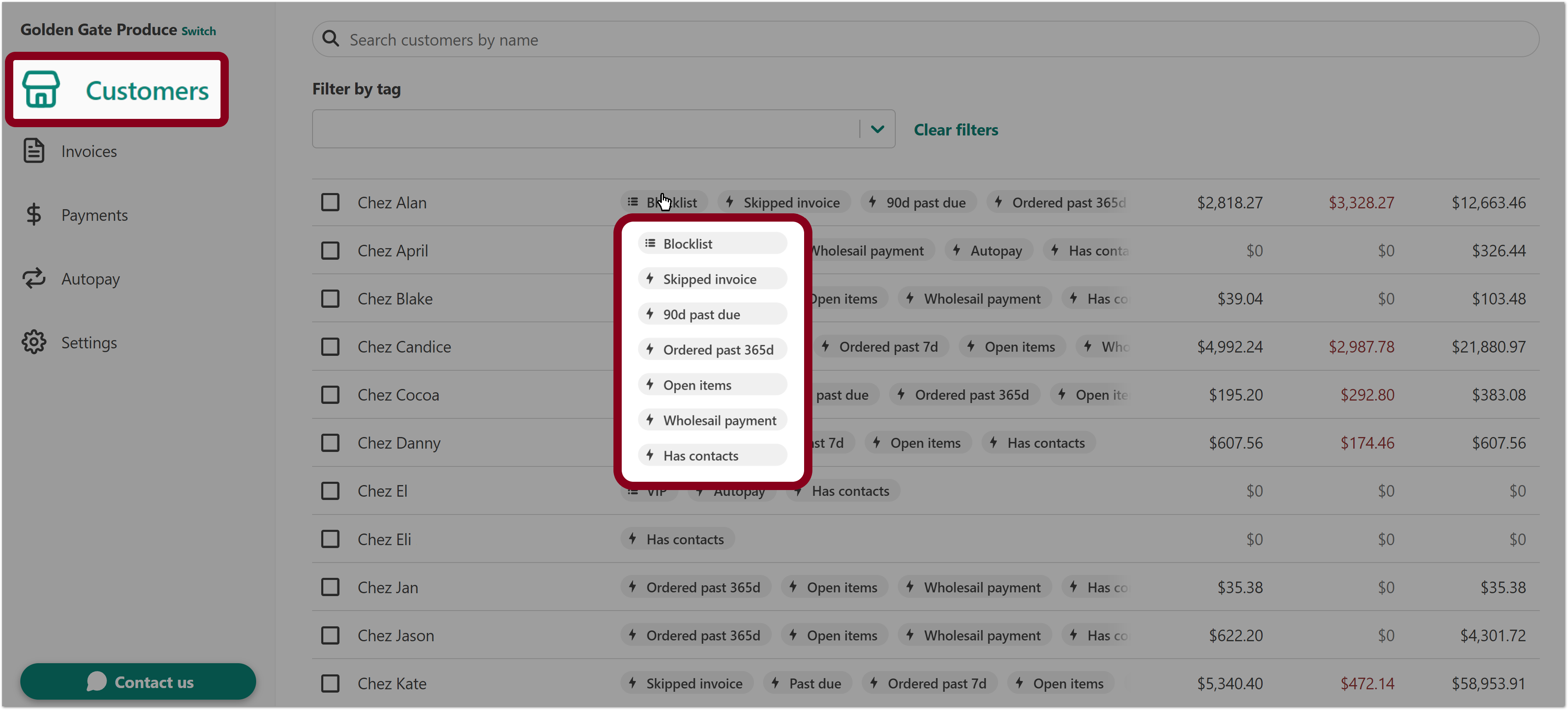
- Login to you Wholesail account and select Customers from the left-hand side to view all customers and their Customer Tag from the Customer List.
- To view all Customer Tags for a specific customer, hover over the customer's tag or click on the customer to open the Customer Details page. Clicking on a Customer Tag from the Customer Details page will show you all customers that have that Customer Tag.
Managing Manual Tags for a Single Customer
You can add or remove Manual Tags from a single customer on the customer detail screen.
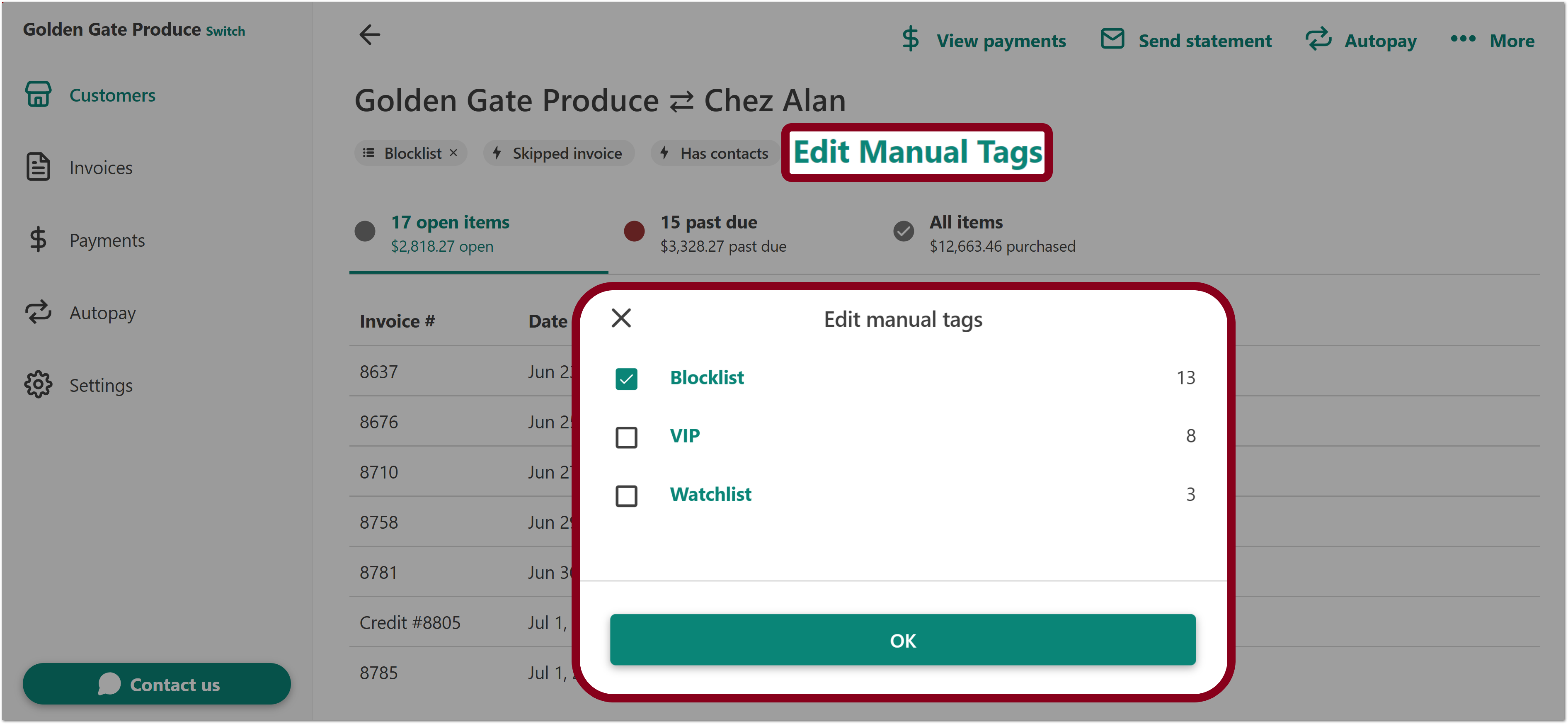
- Navigate to the Customer Details page of the customer you would like to manage Customer Tags for.
- Select Edit Manual Tags.
- Click the checkbox next to each tag to add or remove the tag.
- Select OK to confirm your changes.
Managing Manual Tags for Multiple Customers
You can add and remove Manual Tags from multiple customers in bulk from the Customer List.
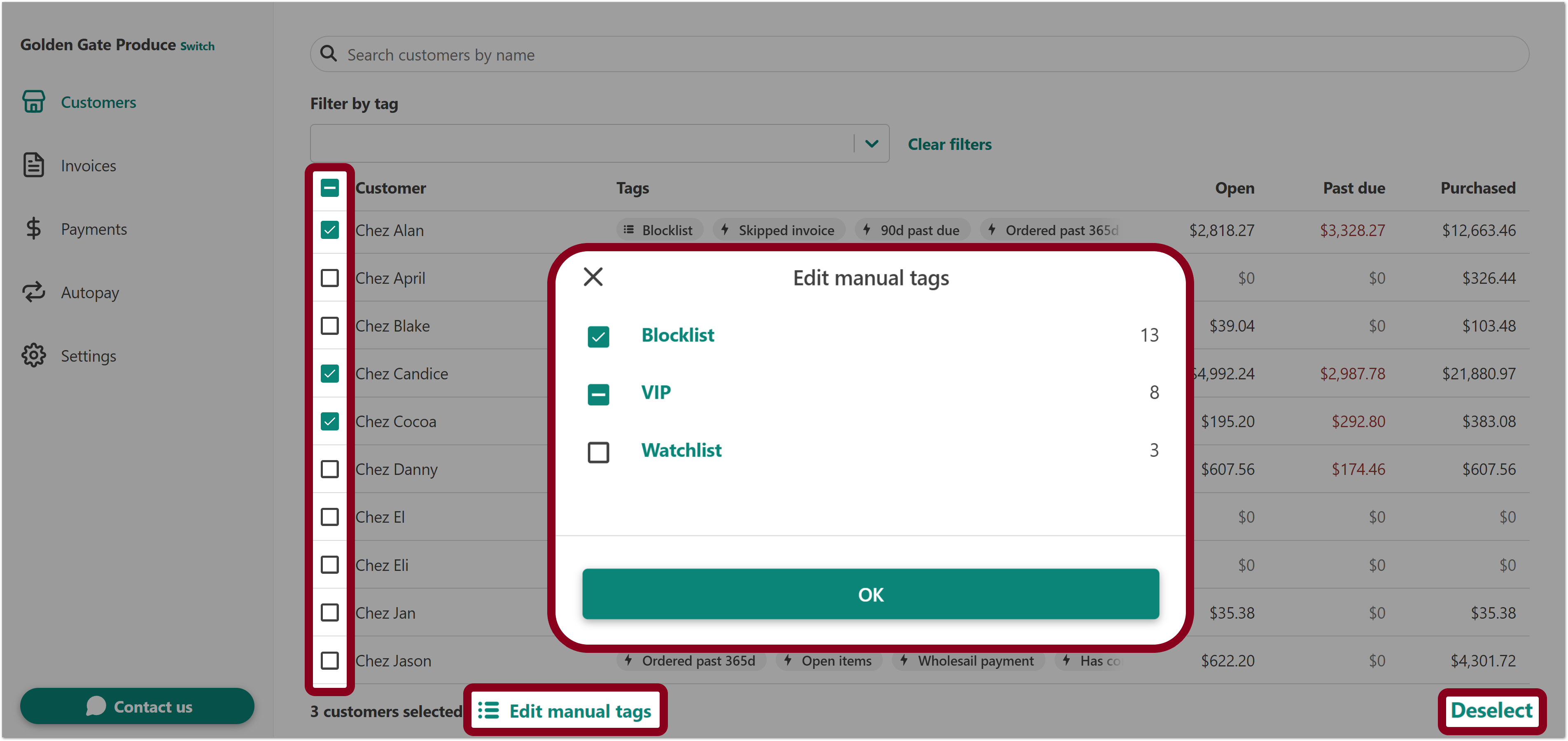
- Navigate to the Customer List to view the Customer Tags of all your customers.
- Select the customers which you want to add or remove a manual tag by checking the checkbox next to the customer name. You can deselect all customers by clicking Deselect from the bottom right corner of the page.
- Click Edit manual tags from the bottom of the page.
- Click the checkbox box next to each Tag to add or remove the Tag from the selected customers.
Button What it means What happens when clicked 
Checked. All of the selected customers have the tag.
Clicking this will uncheck the box.

Indeterminate. Some of the selected customers have the tag, and some selected customers do not have the tag.
Clicking a checkbox with a dash ("–") will uncheck the box. 
Unchecked. None of the selected customers have the tag. Clicking this will check the box. - Select OK to confirm your changes.
Smart Tag Definitions
Smart Tags are computed automatically by Wholesail using data from your accounting system. Here's a list of all available Smart Tags and their definitions.
| Tag | Name | Description |
 |
Open balance | Customers with a positive open balance. |
 |
Open items | Customers with open invoices or open credit memos. |
 |
Accounting issue | Customers with an open balance in Wholesail that is different from your accounting system. |
 |
30d past due | Customers with a 30 day past due balance greater than $0. |
 |
60d past due | Customers with a 60 day past due balance greater than $0. |
 |
90d past due | Customers with a 90 day past due balance greater than $0. |
 |
Past due | Customers with a past due balance greater than $0. |
 |
New | Customers whose first invoice is less than 7 days. If there are no invoices, customers created less than 30 days ago. |
 |
Has contacts | Customers with at least 1 contact. |
 |
Ordered past 7d | Customers with invoices dated in the last 7 days. |
 |
Ordered past 365d | Customers with invoices dated in the last 365 days. |
 |
Wholesail payment | Customers that have paid through Wholesail at least once. |
 |
Autopay | Customers that are enrolled in an active autopay plan. |
 |
Overpaid by $100+ | Customers with an unapplied balance of $100 or more. |
 |
Skipped invoices | Customers with an open invoice that is older than the most recent payment. |
Manual Tags Definitions
Manual Tags are managed directly by you and your team. These represent customer attributes that could not be inferred from customer account data.
| Tag | Name | Description |
 |
VIP | Customers that have been manually marked as very important persons. |
 |
Watchlist | Customers that have been manually marked as requiring extra attention. |
 |
Blocklist | Customers that will not receive email statement emails from Wholesail. |
Did you know? The Blocklist is a great way to prevent your customers from receiving an unexpected statement. You can learn more about managing the Blocklist by clicking here.